Order Lunch Without Leaving Your AI Agent

If you're anything like me, deciding what to eat for lunch is harder than it should be. Now add dietary restrictions on top of that (I'm coeliac so have to eat gluten-free) and suddenly finding a restaurant becomes a whole research project. Searching menus, cross-referencing reviews, checking if that one sandwich actually has gluten in it... it's exhausting.
What if your AI agent could just handle all of that for you?
With the Neighborhood extension in goose, that's exactly what happens. You tell goose where you are, what you need, and it finds nearby restaurants, shows you interactive menus with photos, adds items to your cart, and gets you all the way to checkout, without ever leaving the chat. The only time you step outside goose is to tap "pay."
Let me walk you through how it works.
Setting up the Neighborhood extension
First things first: you need the extension installed. In goose Desktop, click on Extensions, then Browse Extensions, and search for "Neighborhood."
You'll see it right away: Discover nearby restaurants, browse menus, and place takeout orders through natural conversation. Sellers are currently US-based, but even if you're outside the US, it's worth trying out just to see the experience.
Once installed, make sure the extension is enabled in your current chat session. You can check this by clicking the extensions icon in the chat and toggling Neighborhood on.
Install the Neighborhood extension directly in goose Desktop, or use goose configure in the CLI to add a Remote Extension (Streamable HTTP) with the endpoint https://connect.squareup.com/v2/mcp/neighborhood.
Finding restaurants that actually work for you
Here's where it gets fun. Instead of opening a delivery app and scrolling through hundreds of options, you just tell goose what you need:
I'm looking to get lunch today. I'm at 375 West Broadway, New York. I'm gluten-free and I'm playing sport later, so looking for something light. Use the neighborhood extension to find options for me.
That's it. One prompt. goose takes your location, your dietary needs, and even the fact that you are playing sport later, and uses all of it to find the right restaurants.
Behind the scenes, goose calls the Neighborhood MCP server's get-restaurants-nearby tool with your address and a max distance and in return gets a list of restaurants in JSON format. But what you see is something much nicer than raw JSON.
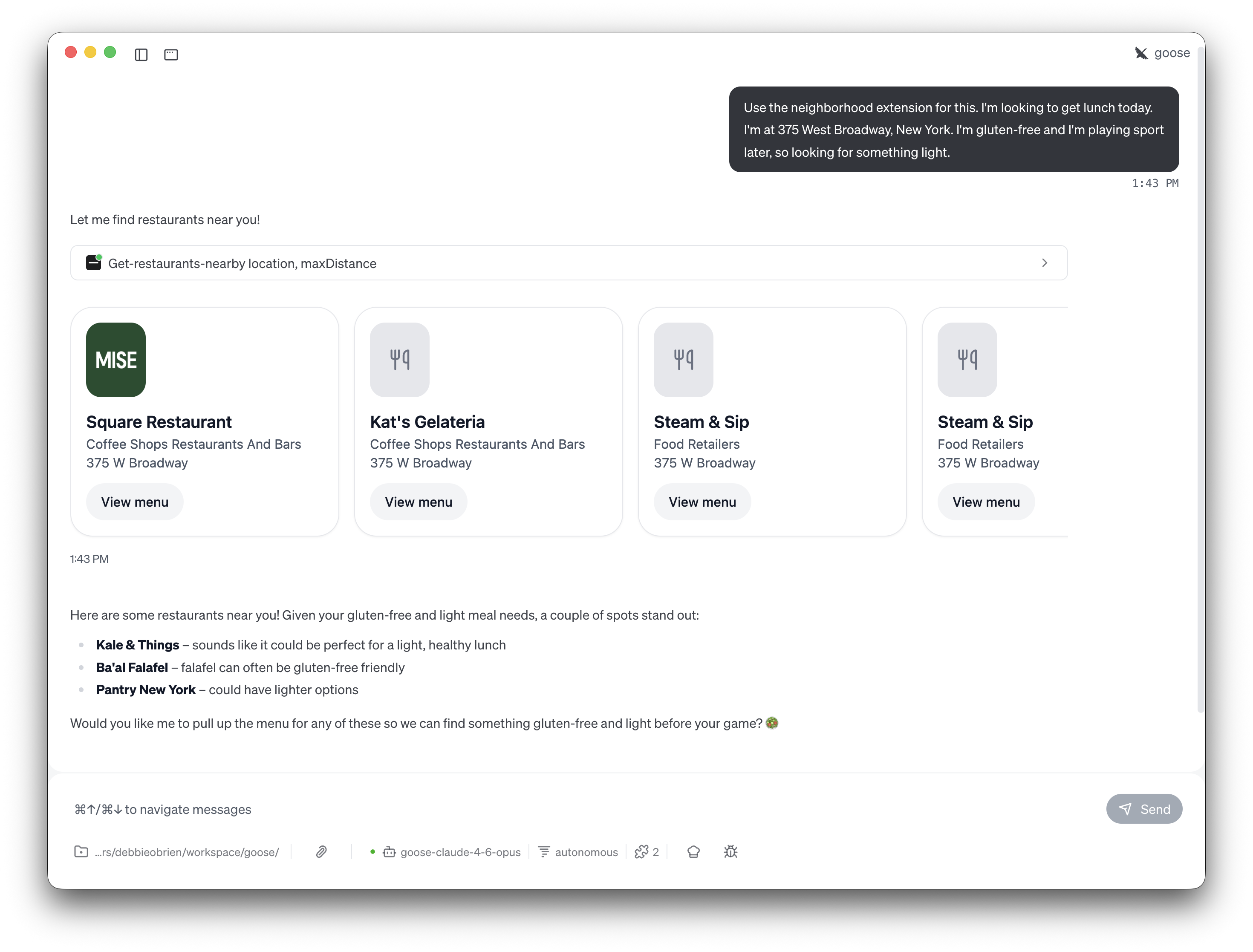
Interactive restaurant cards appear right in the chat as a carousel you can scroll through with an arrow, showing Square Restaurant, Kat's Gelateria, Steam & Sip, and more, each with their category, address, and a View menu button. No browser tabs. No app switching. It's all right there.
And goose doesn't just list restaurants. It thinks about your situation. Given my gluten-free and light meal needs, goose highlighted a couple of spots that stand out: Kale & Things as a perfect option for a light, healthy lunch, Ba'al Falafel since falafel can often be gluten-free friendly, and Pantry New York for lighter options. It even asked if I'd like to pull up the menu so we can find something gluten-free and light before my game. That kind of contextual reasoning is what makes this feel so different from a regular food app.
Browsing menus with images, right in the chat
This is the part that genuinely blew me away.
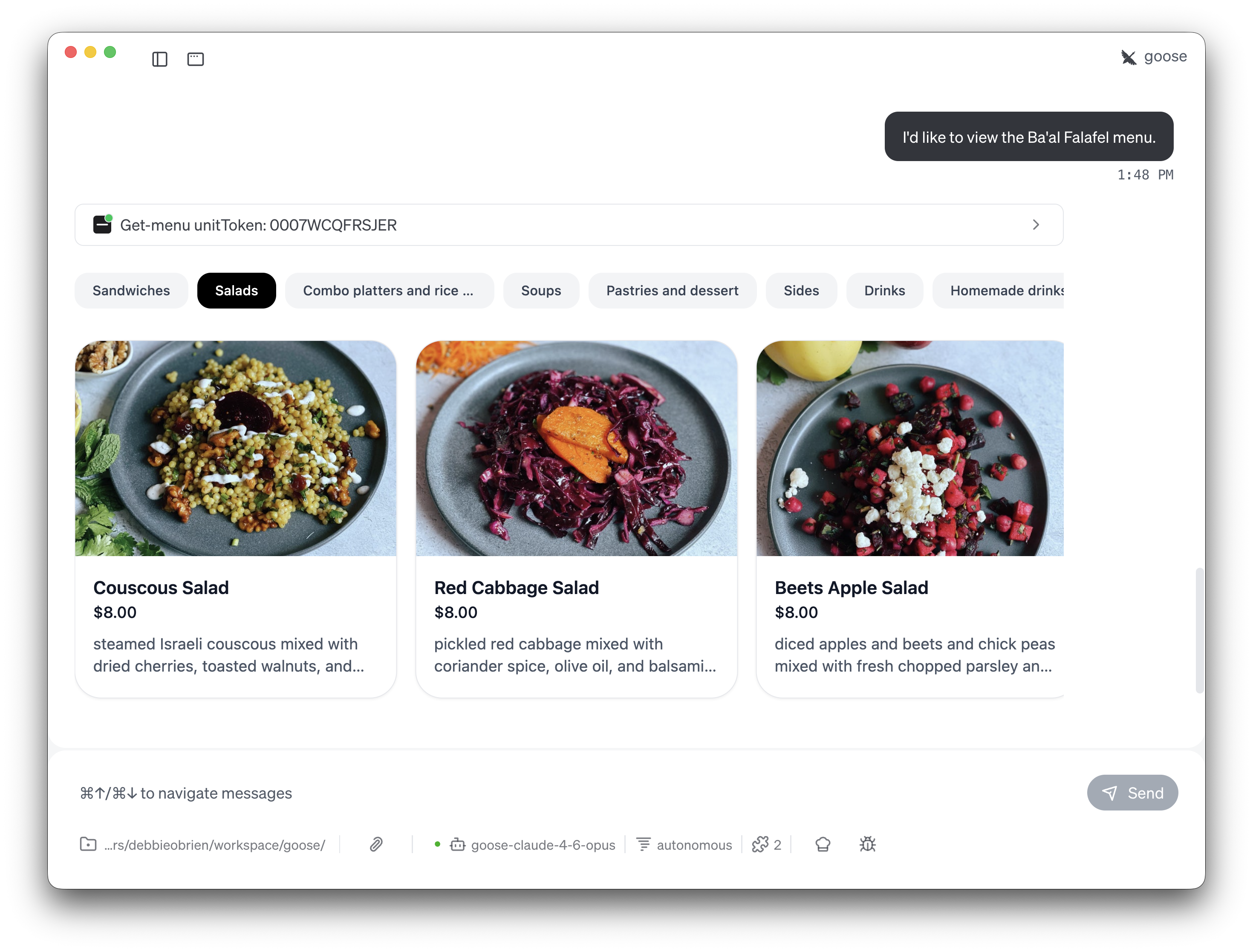
When you ask goose to open a restaurant's menu or when you click on the view menu button, it doesn't just give you a text list. Thanks to MCP Apps, you get a full interactive menu rendered directly inside the chat, complete with category tabs, food photos, prices, and descriptions.
I'd like to view the Ba'al Falafel menu.
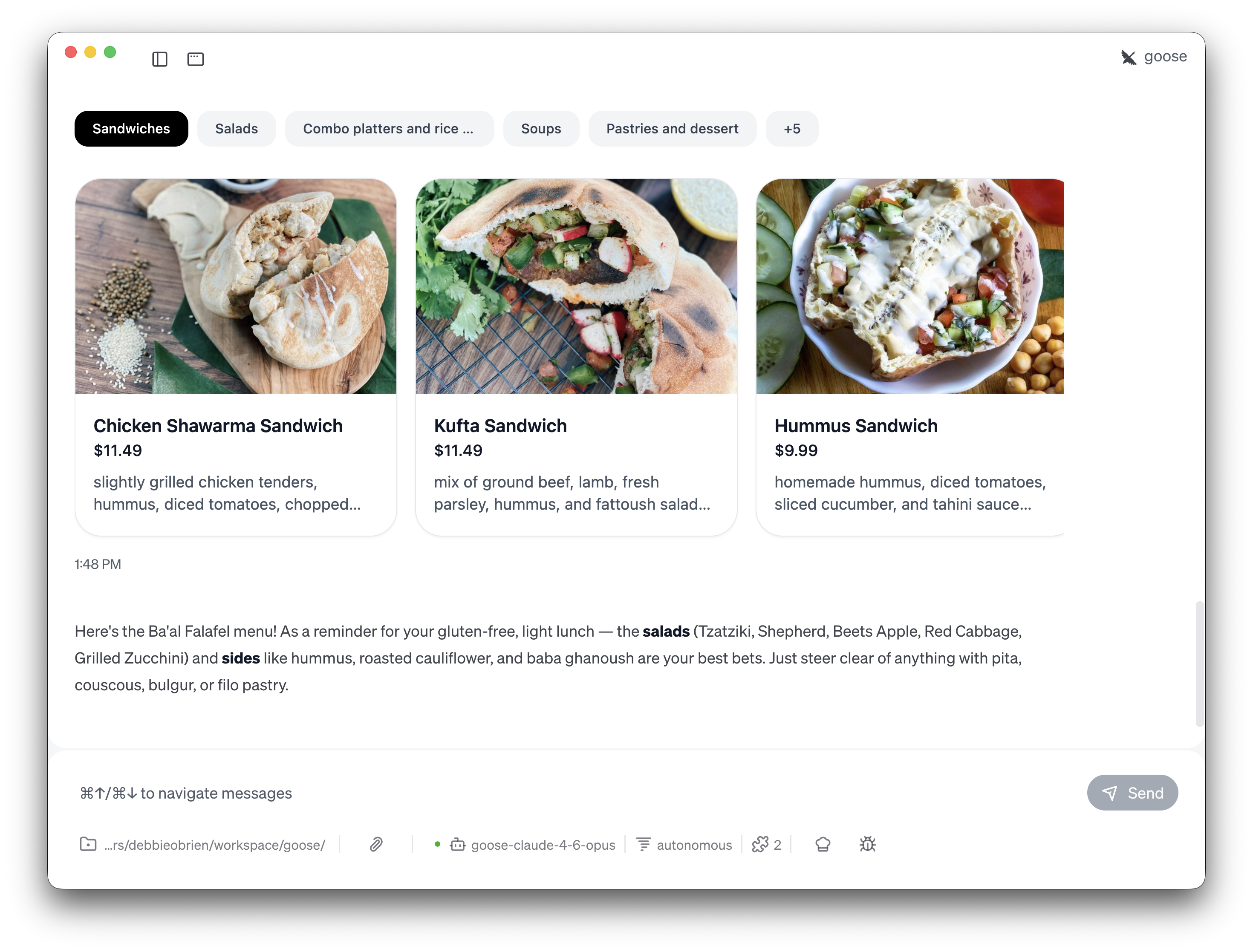
Sandwiches. Salads. Combo platters and rice. Soups. Pastries and dessert. Sides. Drinks. Homemade drinks. Smoothies. Catering. It's all there, and it's all browsable. You can click through the category tabs, scroll through dishes, and see exactly what you're ordering before you commit.
I could click on Salads to see the Couscous Salad, Red Cabbage Salad, and Beets Apple Salad, flip over to Homemade drinks to check out the Mint Lemonade, Ginger Lemonade, and Watermelon Basil, all without leaving the chat window.
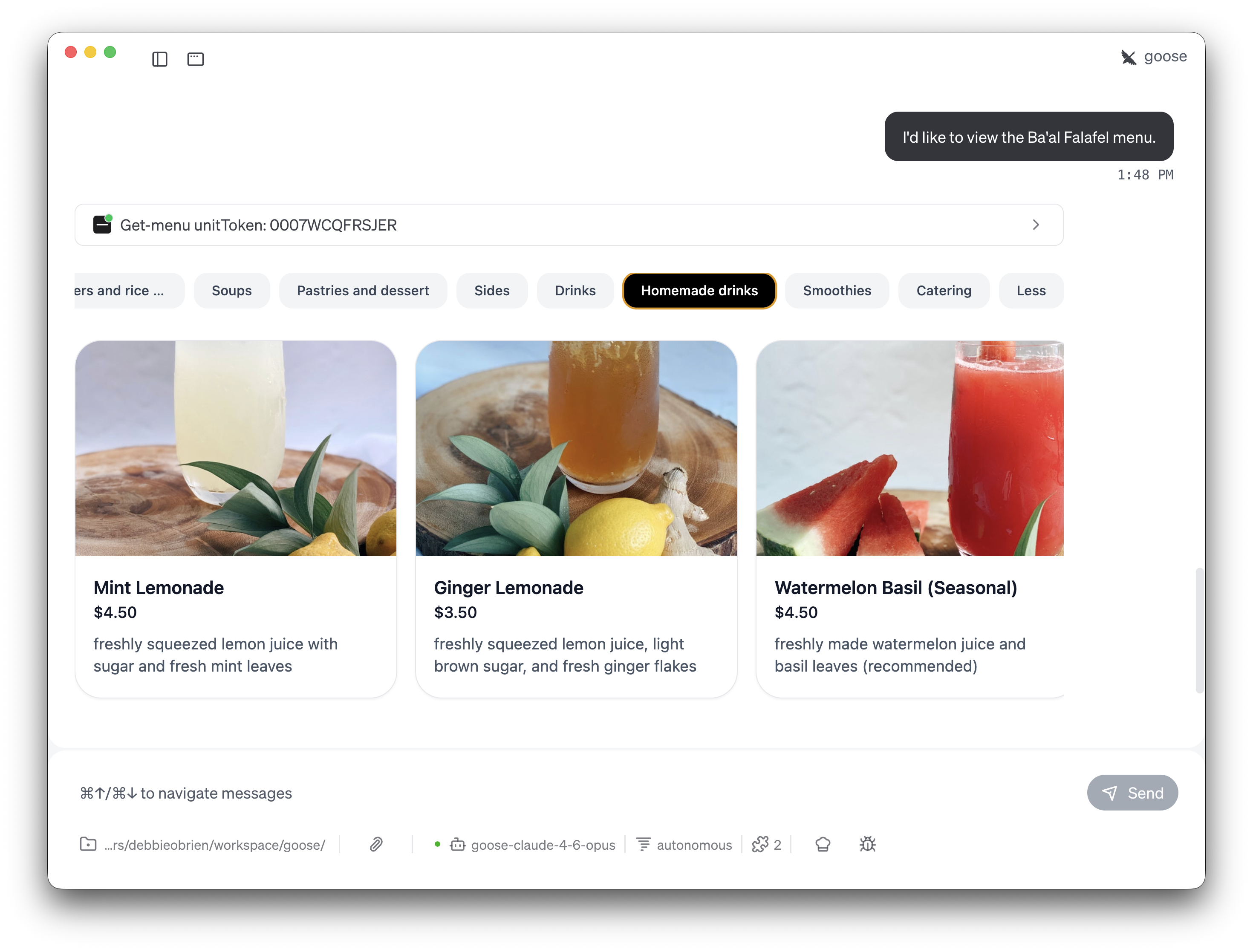
This is not a stripped-down text menu. This is a real, visual, interactive experience powered by an MCP App rendering inside goose.
Meanwhile, goose is also helping me decide. It reminded me that for my gluten-free, light lunch, the salads (Tzatziki, Shepherd, Beets Apple, Red Cabbage, Grilled Zucchini) and sides like hummus, roasted cauliflower, and baba ghanoush are my best bets. It even warned me to steer clear of anything with pita, couscous, bulgur, or filo pastry. Helpful and honest.
Building the order
Once I'd browsed the menu and made my picks, I just told goose what I wanted:
Let's add the Beets Apple Salad, Lentil Soup, and a Ginger Lemonade.
goose added everything to the cart and rendered it as another interactive MCP App right in the chat:
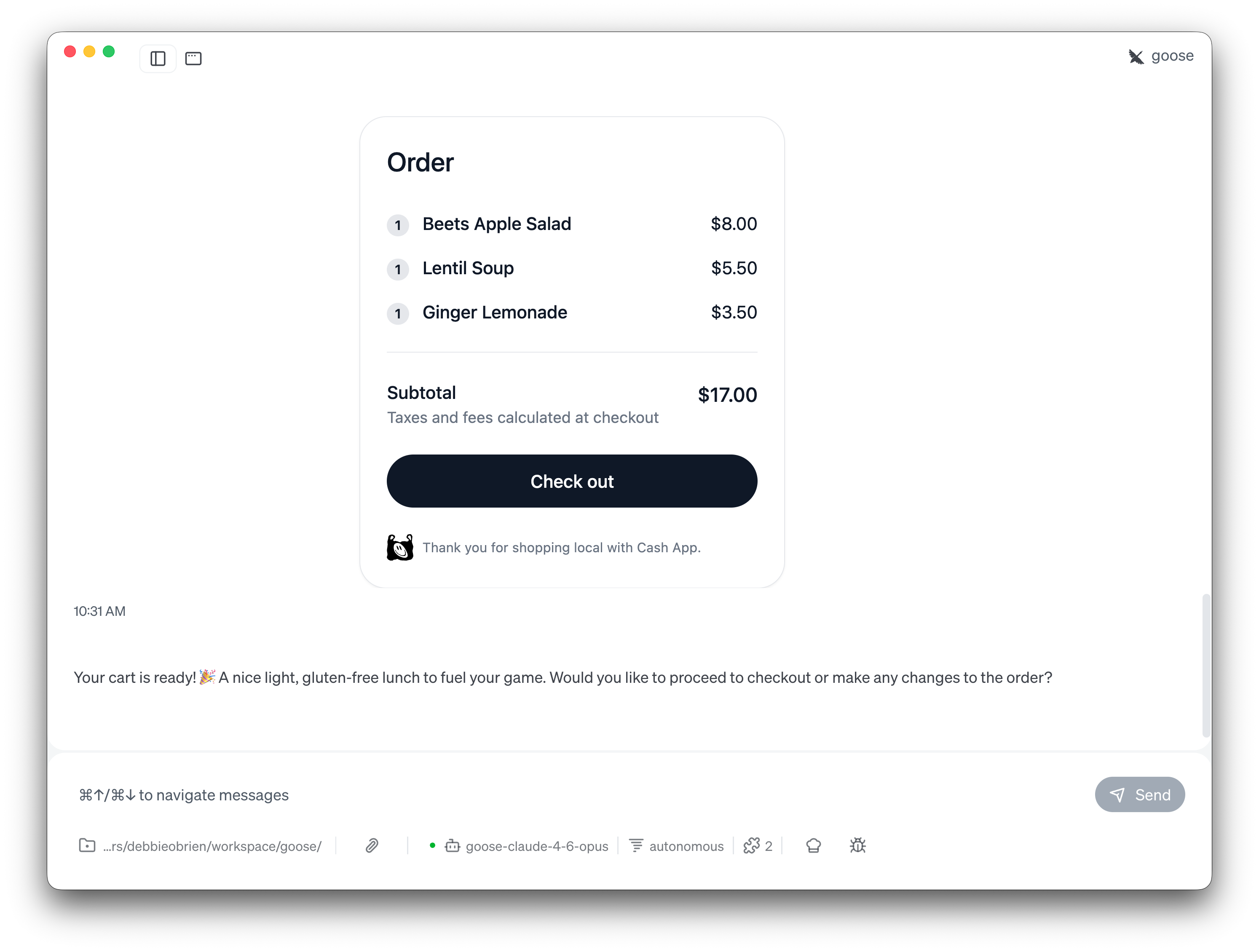
There it is, my Beets Apple Salad ($8.00), Lentil Soup ($5.50), and Ginger Lemonade ($3.50). Subtotal: $17.00. And a big Check out button ready to go.
goose even confirmed: "Your cart is ready! 🎉 A nice light, gluten-free lunch to fuel your game."
If I wanted to make changes, add an item, remove something, swap a drink, I could just ask goose in natural language and it would update the cart. No fiddling with plus and minus buttons.
Checkout, the only time you leave goose
When you click Check out, you're taken to the payment page powered by Cash App. This is the one step that happens outside goose, and for good reason, payment needs to be secure and handled directly.
From there you can see your pickup time, enter your phone number, pay with Google Pay or a credit card, add a tip, redeem a coupon, and even leave a note (like "make sure it's gluten-free!"). Then you place the order and go pick up your lunch.
The entire flow, from "I'm hungry" to "order placed", started with a single prompt.
Why this matters
This isn't just a cool demo. It's a glimpse at how AI agents are changing everyday tasks.
Think about what happened here:
- One prompt replaced opening an app, searching for restaurants, filtering by dietary needs, reading reviews, browsing menus, and adding to a cart
- Context-aware recommendations meant goose factored in my gluten-free diet and my evening sport plans without me having to search for "gluten-free pre-workout meals near my location"
- Interactive MCP Apps rendered rich, visual menus with photos directly in the chat, no browser needed
The Neighborhood extension is a perfect example of what MCP servers can do when they go beyond text. By combining tool calls with MCP Apps for rich UI, the experience feels less like talking to a chatbot and more like having a personal assistant who actually knows the neighborhood.
Try it yourself
Ready to order lunch with goose? Here's how to get started:
- Install the Neighborhood extension, one-click install for goose Desktop, or add it via
goose configurein the CLI - Tell goose where you are and what you're in the mood for, include dietary needs, what you're doing later, or any other context
- Browse the menus, click through the interactive restaurant cards and menu tabs
- Build your order, just tell goose what you want in plain English
- Check out, click the button and complete payment
Check out the Neighborhood extension docs for more details, and try combining it with other goose extensions, like your calendar, for even more powerful workflows.
Watch the full walkthrough
See the entire flow in action: